
If your spouse obtains other employment or coverage, you may need to update your records to reflect the change in coverage.
A Wizard will step you through the process necessary to complete the change request. If you need to leave the process prior to completion, use the Exit button to save your changes and resume later. Note: If the Life Event change request stays in Pending (unsubmitted) status for more than 14 days or is approaching the timed expiration date, you will receive a Message Center notification reminding you to submit it.
1. On the Menu, click Benefits > Report a Life EventBenefits > Report a Life Event.
The Life EventsLife Events page displays.
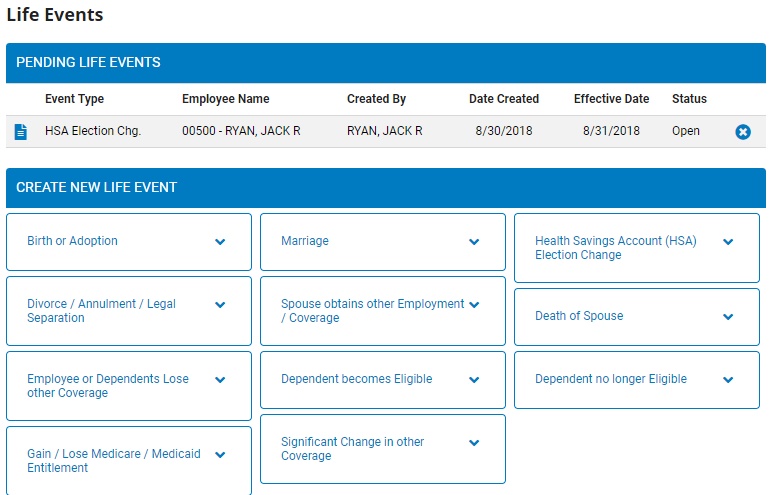
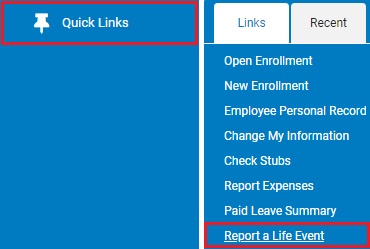
Note: You can also access the Life Events page from the Menu by clicking Quick Links > Report a Life EventQuick Links > Report a Life Event.
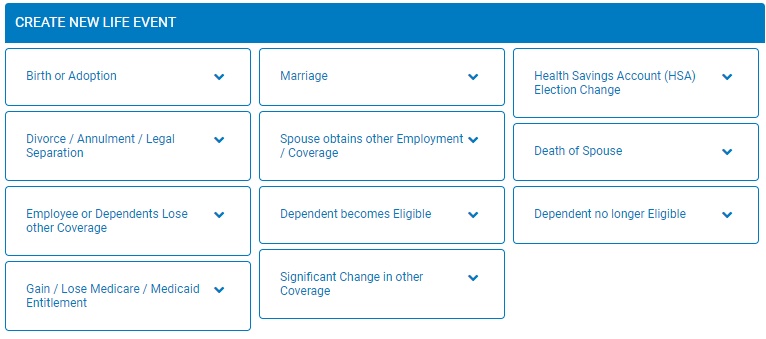
2. In the Create New Life EventCreate New Life Event table, click the Spouse obtains other Employment/Coverage link.
The Life Event WizardLife Event Wizard displays.
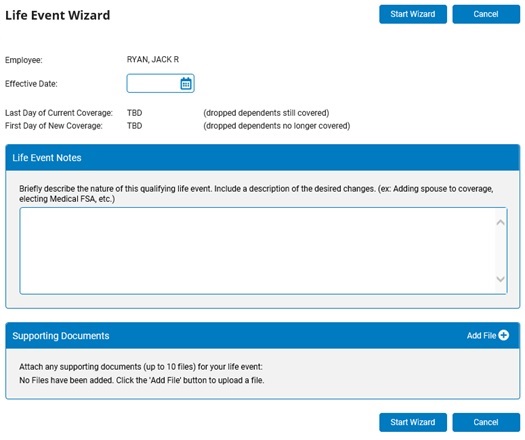
3. Enter a date (in the format mm/dd/yyyy) in the Effective DateEffective Date field.

Note: Enter the date your spouse's new coverage becomes active as the effective date for this Life Event. You may submit this Life Event up to 30 days before it occurs, but must submit it no later than 31 days after the effective date.
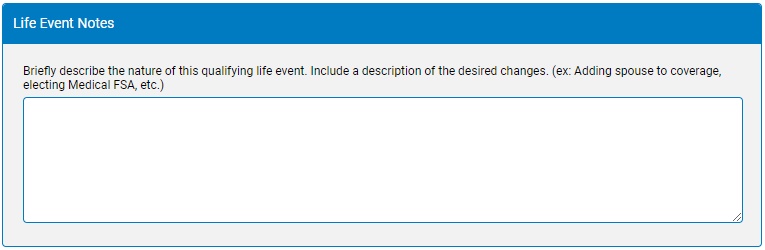
4. Enter any pertinent information regarding your spouse's change in coverage in the Life Events NotesLife Events Notes box.
5. Attach any files in the Supporting DocumentsSupporting Documents section that may assist with validating the life event.

6. Click the Start WizardStart Wizard button.

The Life Event - Dependent ChangesLife Event - Dependent Changes page displays.
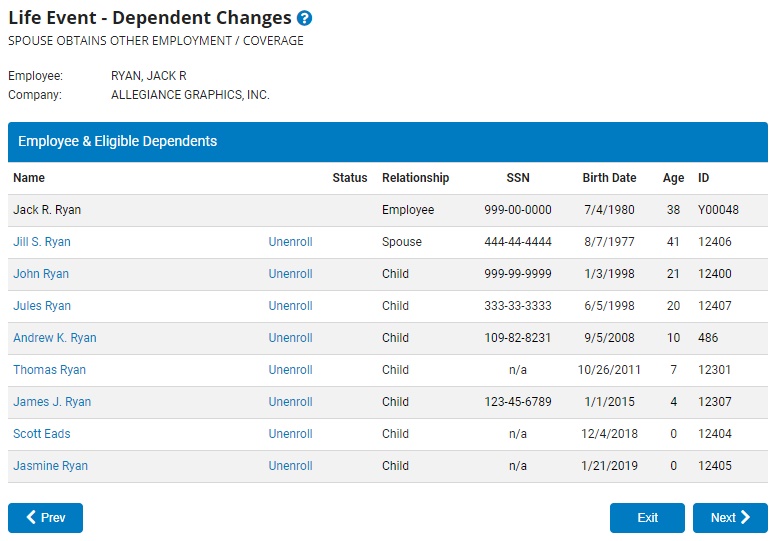
Note: The displayed table contains a list of all dependents presently included in your elections. You may make changes to your spouse's coverage on this screen if necessary.
7. If your spouse is currently enrolled in coverage, click the UnenrollUnenroll link to unenroll your spouse from coverage on the effective date you entered on the previous screen.

Note: If your spouse's coverage doesn't effect all plans and your spouse will remain on a portion of your current benefits, you will have the chance to unenroll your spouse from individual plans in the following steps.
8. After entering all changes, click the NextNext button.

The Life Event Wizard (Information)Life Event Wizard (Information) page displays.
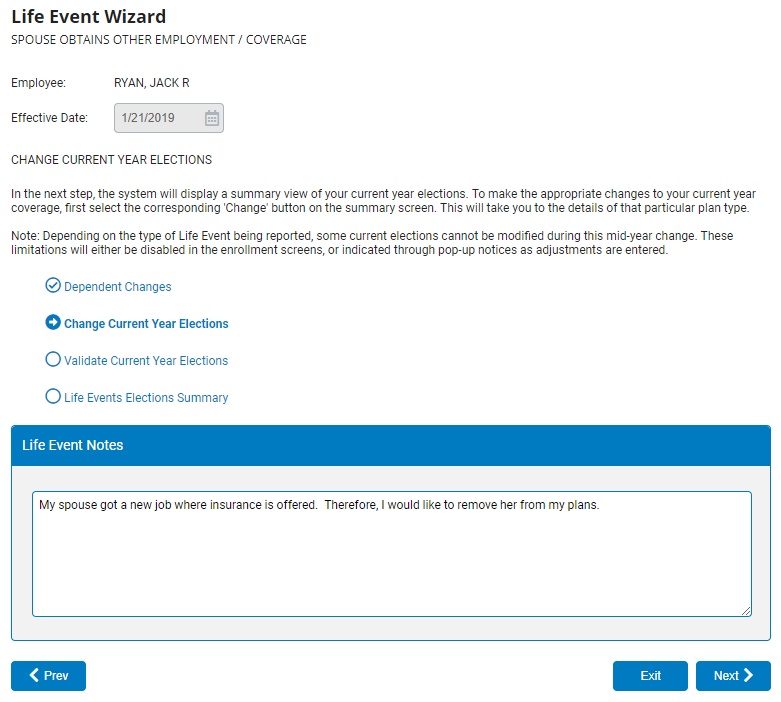
Note: In the steps that follow, the system will display a summary view of current year elections for both you and your spouse.
9. Click the NextNext button.
The Life Event Wizard - Current Year ElectionsLife Event Wizard - Current Year Elections page displays.
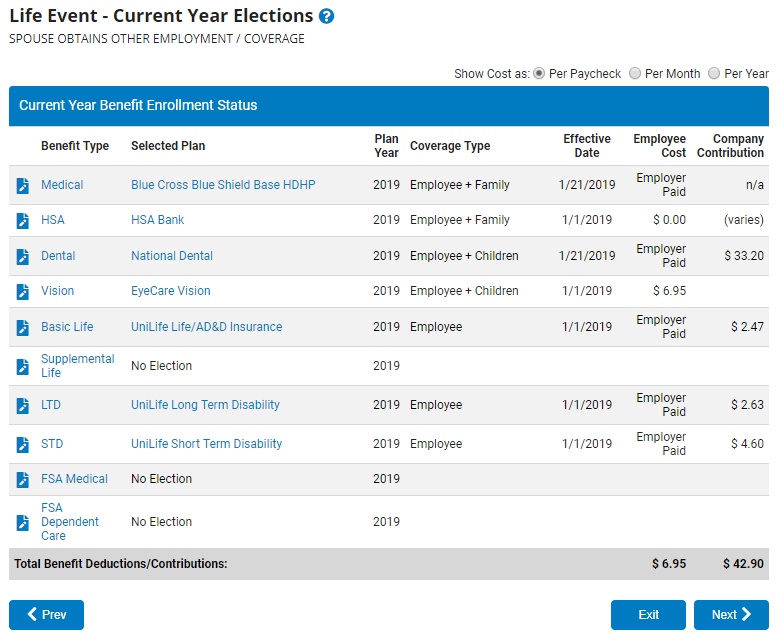
10. To make any needed changes to your current year coverage, click the ChangeChange button corresponding to the relevant plan.

Note: Be sure to include all desired changes for your coverage before continuing on to the next step. This would include unenrolling your spouse from individual plans while leaving your spouse enrolled in others, presumably those not included in your spouse's new coverage.
11. After completing all Current Year elections, click the NextNext button.
The Life Event Wizard (Information)Life Event Wizard (Information) page displays.
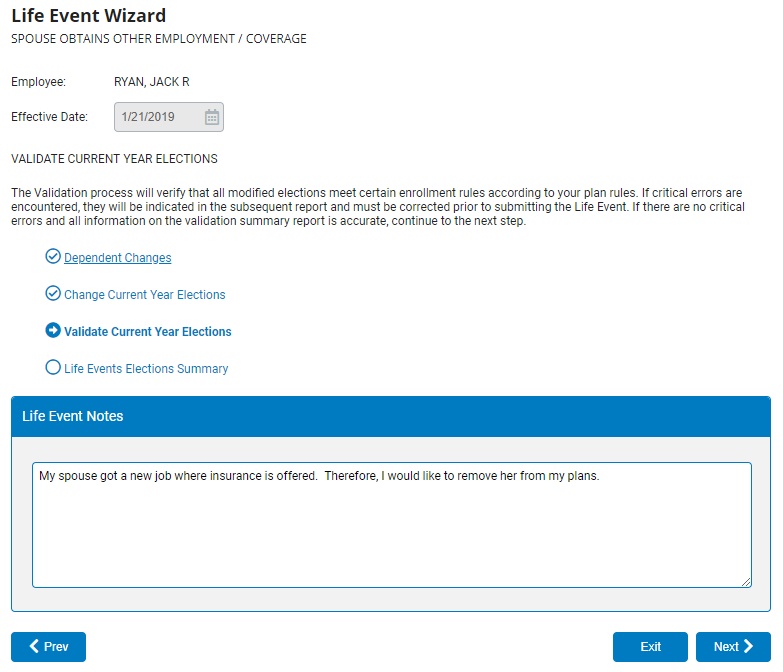
12. Click the NextNext button.
The Life Event Enrollment ValidationLife Event Enrollment Validation page displays.
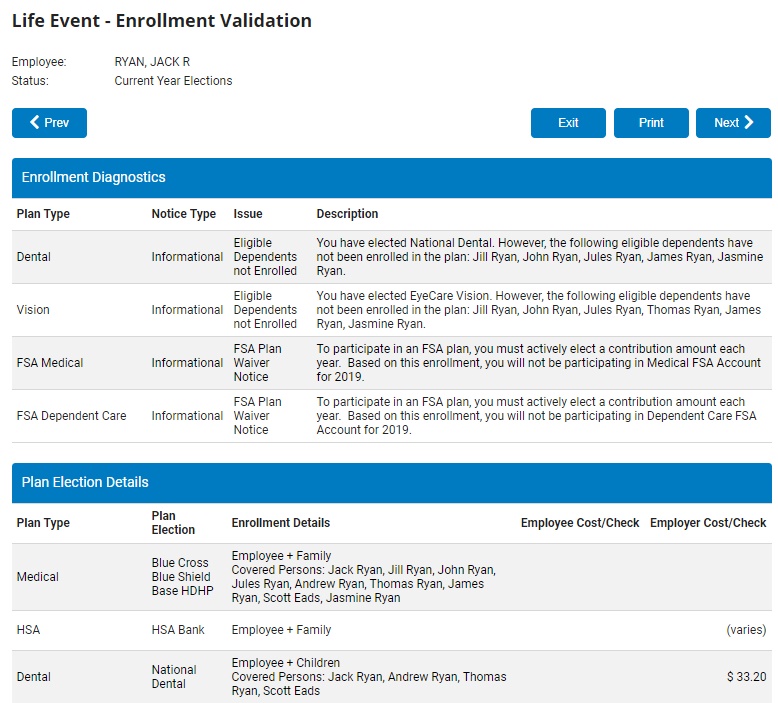
Note: The Validation process will verify that all modified elections meet certain enrollment rules according to your plan rules. If critical errors are encountered, they will be indicated in this report. You must correct these errors before submitting the Life Event.
13. Carefully review all information on this report.
14. If you need to adjust any information, click the PrevPrev button and return to the Benefit Enrollment screen.

15. If you are satisfied with these elections, click the PrintPrint button to obtain a printed copy of this report.

16. Click the NextNext button.
The Life Event Wizard (Information)Life Event Wizard (Information) page displays.
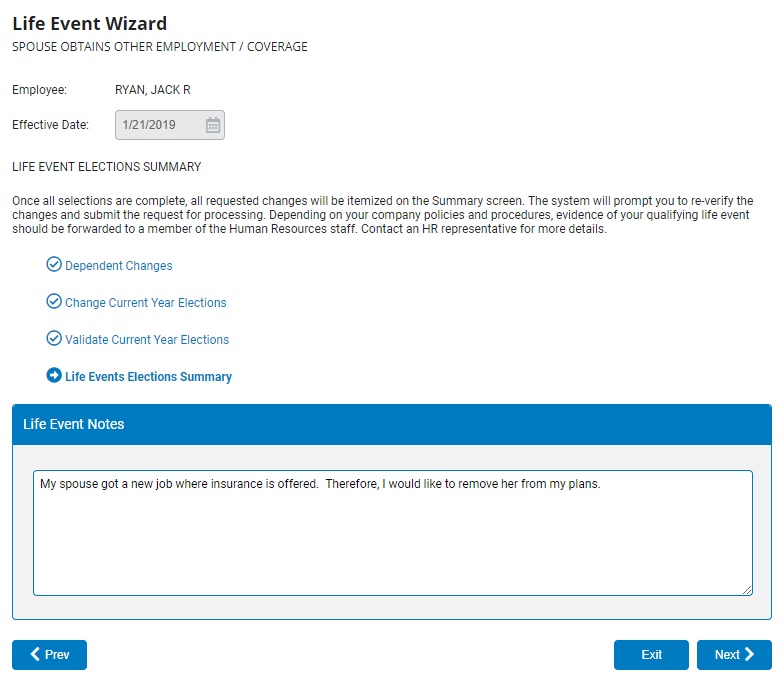
17. Click the NextNext button.
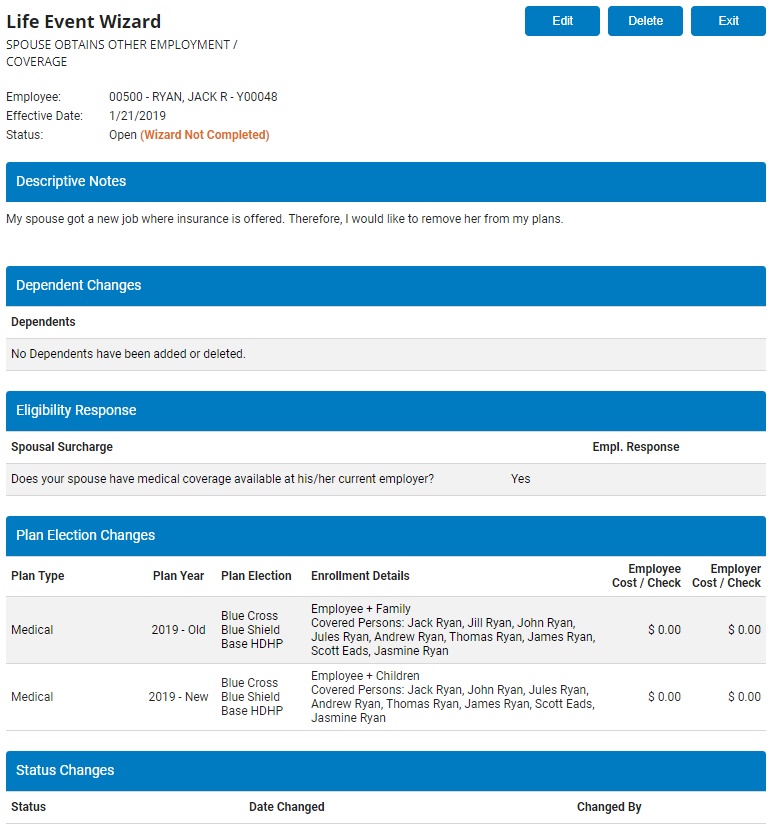
The Life Event SummaryLife Event Summary page displays all changes to your benefits coverage as a result of your spouse obtaining other employment or coverage.
Notes:
To edit or view detailed Life Event elections, click the EditEdit button.
To permanently cancel changes prior to execution, click the DeleteDelete button.

18. If all changes are accurate, click the SubmitSubmit button to forward your Life Event to the benefits administrator for approval.

Notes:
Changes will not occur until the Life Event is approved by the benefits administrator and the designated effective date is reached. Once approved, all changes will be reflected in your records on the approval date, or effective date, whichever is later.
You may need to forward evidence of your qualifying Life Event to the benefits administrator.