Based on company setup rules, the 401(k) Deductions EAN allows you to change deferral types (percentage or flat) and enter amounts for pre-tax, Roth, and post-tax deferrals. The submitted EAN will be routed through management for approval prior to processing.
|
You currently have four percent deducted from your regular paychecks for your 401(k) deferral; however, you want to increase it to six percent. Use the 401(k) Deductions EAN to submit the change. |
Note: This feature may not be available in your organization. Please contact your HR Administrator for specific details about your 401(k)/403(b) plan and your company's policies/procedures for updating your contributions.
To edit your 401(k) elections:
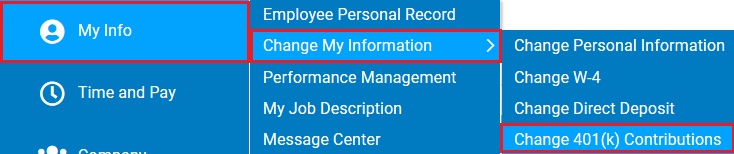
1. On the Menu, click My Info > Change My Information > Change 401(k) ContributionsMy Info > Change My Information > Change 401(k) Contributions.
The 401(k) Deductions EAN401(k) Deductions EAN displays.
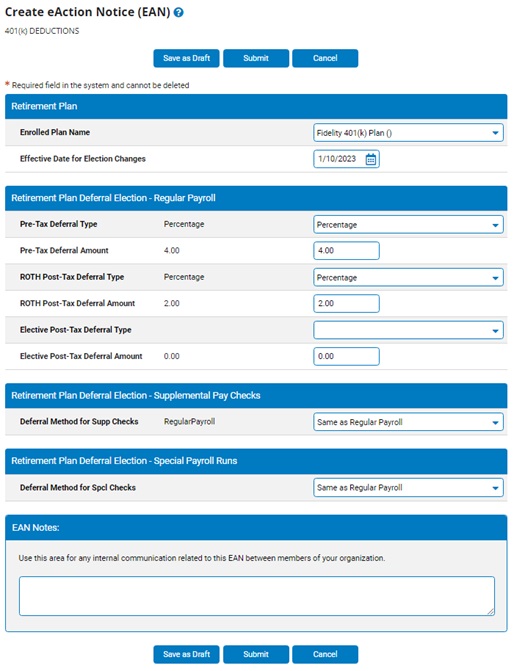
2. Enter the date that you want the changes to your 401(k) deductions to take effect in the Effective Date for Election ChangesEffective Date for Election Changes text box.

4. Complete the fields in the Retirement Plan Deferral Elections - Regular Payroll area for your pre-tax, Roth, and elective post-tax deferral elections.
If you select Percentage as the Deduction Type, the amount you enter is a percent. If you select Flat, the amount you enter is a flat amount.
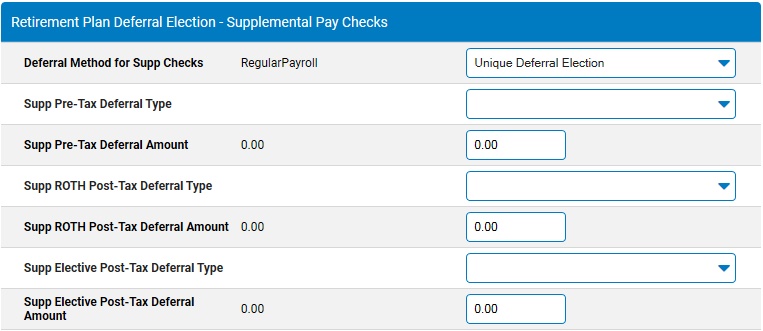
5. In addition to making retirement contributions from the wages paid on regularly scheduled payroll cycles, a different deferral election amount may be optionally designated for when supplemental wages are received (such as a bonus). If the deferral method for supplemental checks is not the same as for regular payroll, select the option in the Deferral Method for Supp Checks drop-down box.Deferral Method for Supp Checks drop-down box.

If you select No Deferral on Supp Check, no retirement plan deductions will be taken from your supplemental checks. If you select Unique Deferral Election, more fieldsmore fields display for you to complete. These are the same fields as for regular payroll, but the deductions apply to supplemental checks only.
6. A third/separate Special Payroll Runs Only section may also be displayed. If made available by your employer, this provides you the option to make special deferral contribution elections that are to only be applied on specialized payout types (such as profit sharing or an annual bonus payout).
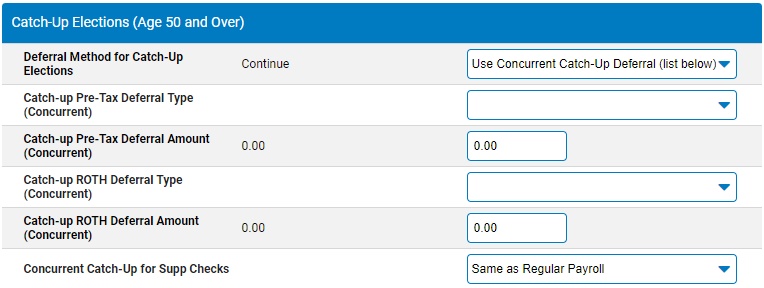
7. If your company allows catch-up elections and you are age 50 or over during the plan year, complete the fields in the Catch-Up Elections (Age 50 or Over) area.
Employees age 50 and over have a higher cap for retirement plan deferrals. The difference between the standard cap and the higher cap is called the "Catch Up" Contribution. You have three choices for what to do for the Catch Up. You can choose to use your standard deferral elections to reach the higher cap (Continue Regular Deferral Beyond Standard Cap), stop all contributions beyond the standard cap (Suppress All Over-50 Catch Up Contributions), or use different deferral elections for the catch-up portion (Use Concurrent Catch-Up Deferral). If you select Use Concurrent Catch-Up Deferral, more fieldsmore fields display for your pre-tax and Roth catch-up elections.
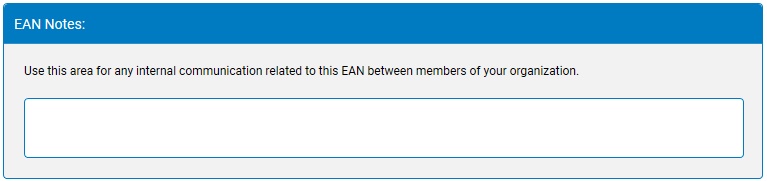
8. Enter any notes related to the EAN in the EAN NotesEAN Notes text box for internal payroll department to review.
9. After entering all necessary changes to the 401(k) EAN, click the SubmitSubmit button to submit it for approval.

Result: The EAN you just created is now visible on the eAction Notice (EAN) Summary page. An HR administrator must approve the EAN and submit it to ExponentHR for completion. After the EAN is completed, the changes you made to your retirement plan information are implemented in ExponentHR.