After you have added a document and uploaded a file for it, you can go back and edit its properties. You can change its title, reformat its description, change its publication status and date, and even upload a revised file for it.
To edit a document's properties, such as its folder location, status, and publication date:
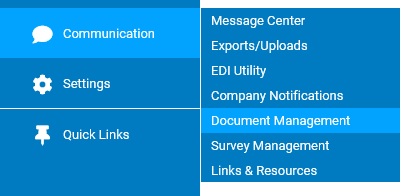
1. On the Management Navigation Menu, click Communication > Document ManagementCommunication > Document Management
The Document ManagementDocument Management page displays.
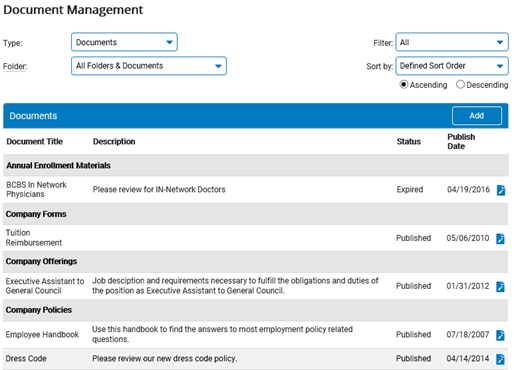
2. Select Documents in the Type drop-down box.
The list of existing documents displays.
3. Locate or filter on the folder where the document is stored in the Folder drop-down box.
4. Click the Edit icon next to the document whose properties you want to edit.
The Edit DocumentEdit Document page displays.
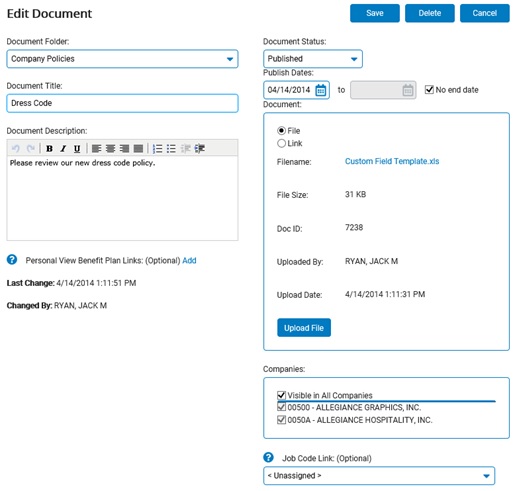
5. To change the folder where the document is stored, select a different folder from the Document Folder drop-down box.
Note: You can change the folder where the document is stored, but you cannot select an additional folder to which to assign it. You need to add a document again, upload the file, and select another folder to store it. See the Related Help Topic below for more information.
6. To change the title, type over the text in the Document Title text box.
7. To change the description, type over the text in the Document Description text box.
8. To change the status, select Published or Unpublished in the Status drop-down box.
Note: Once the document is published, you cannot change it back to Draft status.
9. To change the publication dates, type over the dates or use the calendar icon.
10. To upload a different file, or change the address of a link, select the File or Link radio button.
11. Click the Save button.
Related Help Topics:
Setting Up Yearly Benefits Guides