Rather than creating a new Company Notice from scratch each time, you can copy a notice your company has used before, add recipients, and give it a new delivery date.
To set up a new Message Center Notification based on an existing one:
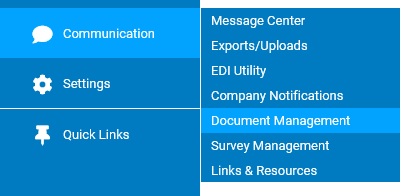
1. On the Management Navigation Menu, click Communication > Company NotificationsCommunication > Company Notifications
The Company NotificationsCompany Notifications page displays.
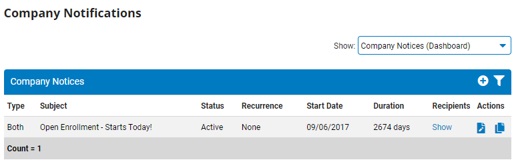
2. Select Message Center Notifications in the Show drop-down box.
The Message Center NotificationsMessage Center Notifications section displays, with a list of all Message Center Notifications that have been set up.
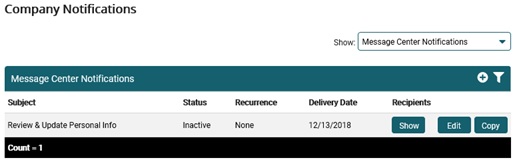
3. Click the Copy button in the row of the Message Center Notification you want to copy.
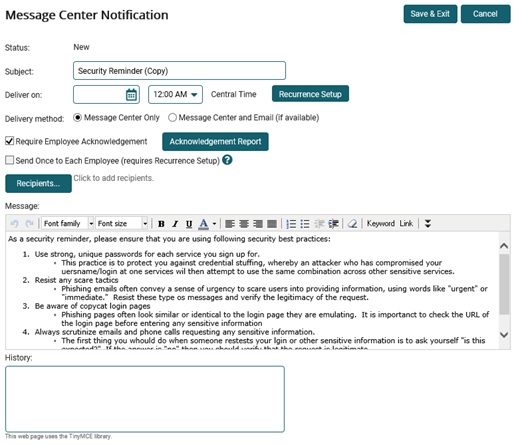
The Message Center NotificationMessage Center Notification page displays, with the information from the notification you copied.
Notes:
The delivery date is now set to the current date, but you can change it.
No recipients are selected for the copied message.
4. Delete the word (Copy) from the text in the Subject box.
5. Select the recipients you would like to receive the Message Center Notification.
Selecting RecipientsSelecting Recipients
1. Click the Recipients button.
The Notifications RecipientsNotifications Recipients window displays.
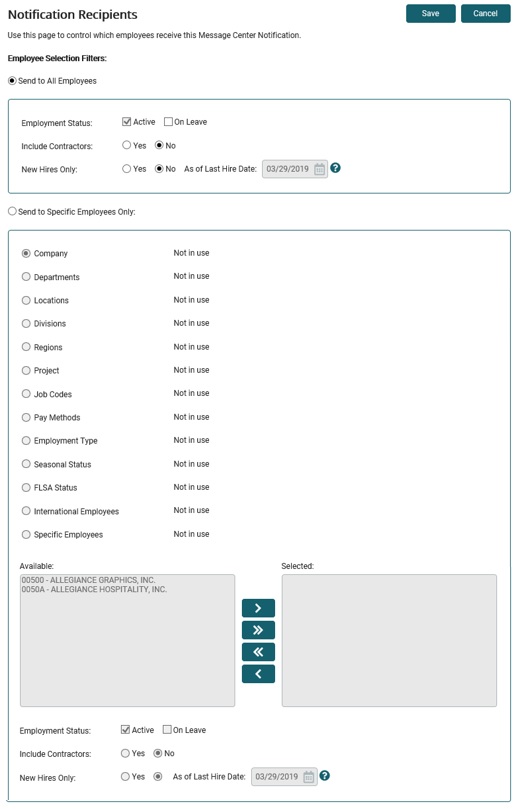
2. Click the radio button for whether you want to send the notification to all employees or only specific employees.
3. If you selected to send the notification to specific employees only, select the radio buttons for which categories to include in the list of available filters. Then, click the filters you want in the Available list and click the --> button to move them to the Selected list.
Notes:
The types of available criteria vary from company to company, but common types are department, location, Job Codes, etc.
Select the check box to include on-leave employees in the Available list if desired.
The filters work in conjunction with each other. Select more than one category at a time to further restrict the audience.
4. If selecting the New Hires Only option, ExponentHR will restrict the recipient group to only those employees with a Last Hire Date on or after the designated date.
5. Click the Save button.
6. Change other information, as necessary. See Related Help Topics for instructions on setting up Message Center Notifications.
7. Click the Save & Exit button.
Result: On the delivery date, the Message Center Notification is sent to the selected recipients' Message Center in ExponentHR.
Related Help Topics: