Enroll in New Benefits
Use this task to enroll in
benefits upon first becoming eligible.
You
are a new employee and have just received an email that you are
eligible to enroll in medical benefits with an effective date
of the first of next month. By clicking on New Enrollment in the
benefits area, you will be able to go through the New Enrollment
wizard to add dependents and enroll in the desired benefits.
|
To enroll in Benefits through New Enrollment:
Notes:
If you have NEVER
enrolled in benefit plans through ExponentHR (that is, you are eligible
for the first time), you will then want to choose to go through the
New Enrollment wizard.
If you have been
enrolled in benefits, and are re-signing up or changing your plan,
use the Open
EnrollmentOpen
Enrollment link instead of the New
Enrollment link.
In the event
that you are eligible to participate in both New Enrollment (to enroll
in benefits for the remainder of the current plan year) and for Open
Enrollment (to enroll in benefits for the start of the next plan year),
you will want to choose to enroll through both New
Enrollment and Open Enrollment
if desiring to have benefit coverage at the earliest available effective
date and continue into the next plan year.
You can add or
edit beneficiaries for life insurance plans at any time WITHOUT using
a Life Event.
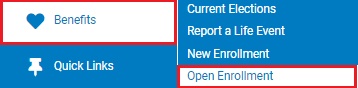
1. On the Menu, click Benefits
> New EnrollmentBenefits
> New Enrollment.
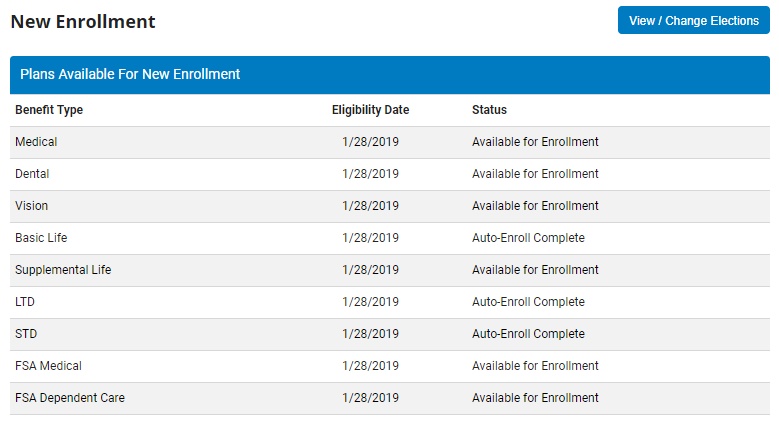
The New
Enrollment Plan ElectionsNew
Enrollment Plan Elections page displays.
Benefit
Type: Displays the group benefit plans offered by your
organization.
Eligibility
Date: Displays the date on which you will be eligible
to enroll in the listed benefit plan.
Status:
Displays the current status of availability for you to actively
enroll in the listed benefit plan.
2. Click
on the View/Change
ElectionsView/Change
Elections button when ready to start enrolling in
the available benefit plans.
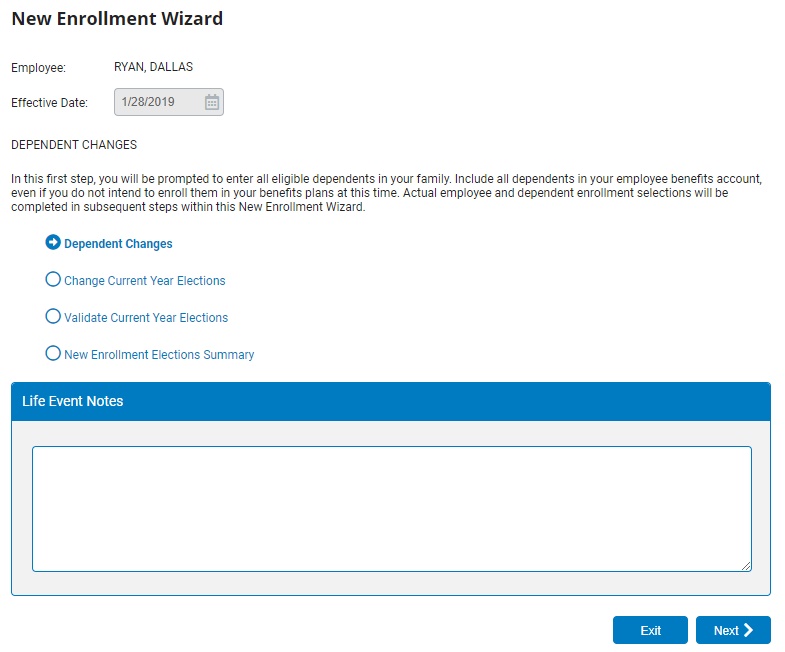
The New
Enrollment WizardNew
Enrollment Wizard page displays.
3. Click the NextNext
button.
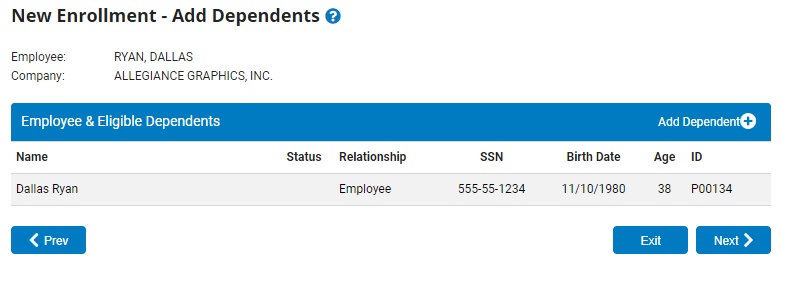
The Add
DependentsAdd
Dependents page displays.
4. If any dependents need to be entered for potential
enrollment, click the Add
DependentAdd
Dependent button.
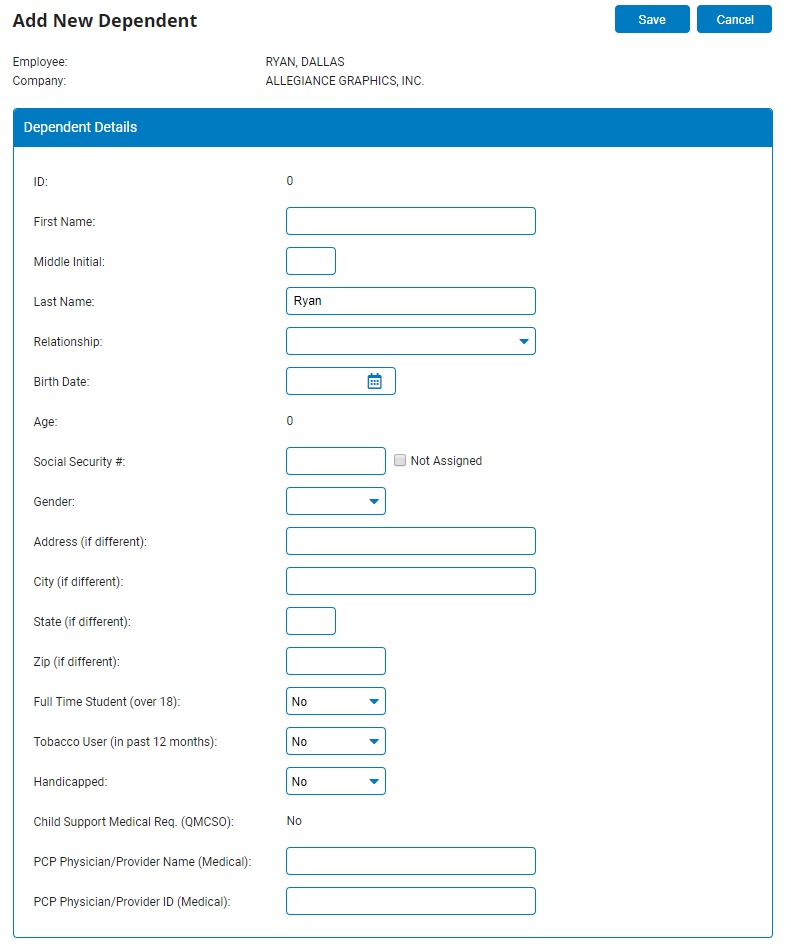
The Add
New DependentAdd
New Dependent page displays.
Note:
Type in the dependent's personal and
demographic information and click SaveSave
when finished.
5. When all desired dependents have been entered,
click the NextNext
button.
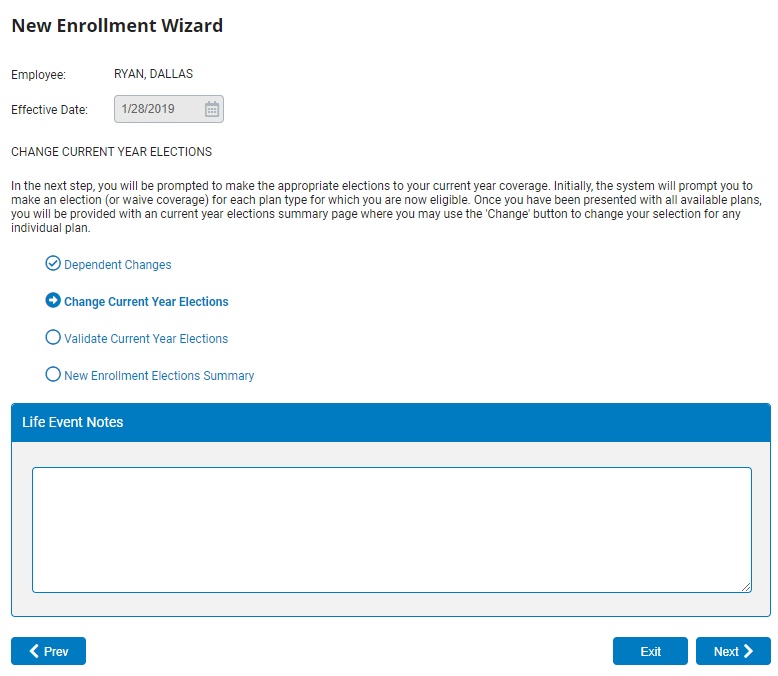
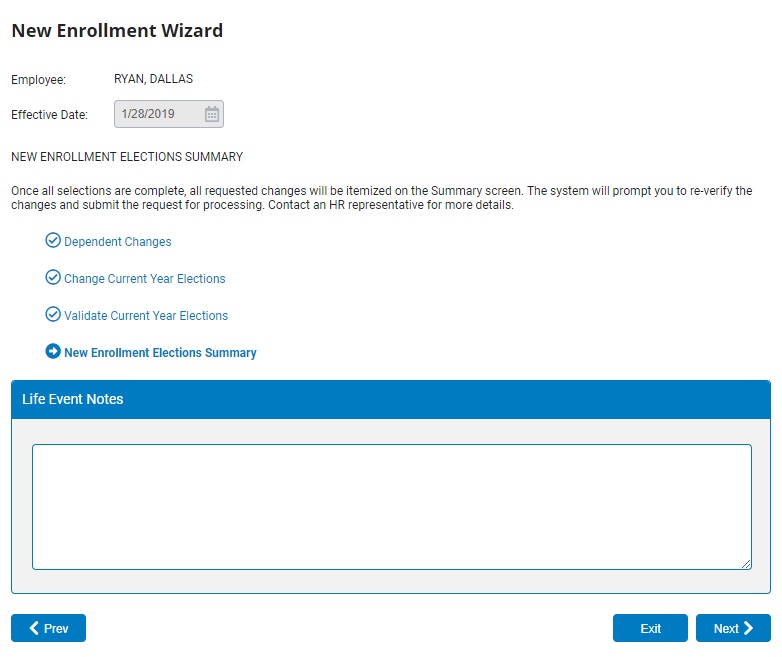
The New
Enrollment WizardNew
Enrollment Wizard page displays again with the Dependent Changes section now marked
as complete.
6. Click the NextNext
button.
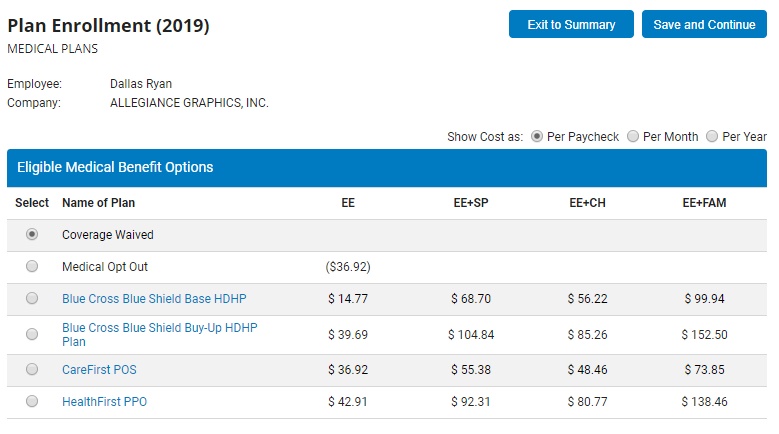
The Plan
EnrollmentPlan
Enrollment page displays with the first available
plan that you are eligible to enroll in.
Note: The default
for each employee paid plan is set at Coverage
WaivedCoverage
Waived.
7. If desired to enroll in the displayed plan, click
the radio button next to the plan
you wish to enroll in.
Note:
The previously entered dependents are displayed below once a plan is chosen.
8. Check
the box next to each dependent you desire to be enrolled in the selected
benefit plan or click Select
AllSelect
All to have all listed dependents enrolled.
9. Click
the SaveSave
button once satisfied with enrollment selection for the displayed plan.
10. Repeat
the previous three steps for all available plans that are presented for
you and any dependents to enroll in.
11. Once
all the election choices have been made, the New
Enrollment WizardNew
Enrollment Wizard page displays again with the
Change Current Year
Elections section now marked as
complete.
12.
Click the NextNext
button.
The New Enrollment Validation
page displays.
This page provides information details for all benefit
elections currently applicable for the designated plan year. Please carefully
review all information on this report. If any information requires an
adjustment, select the 'Back' button and return to the Benefit Enrollment
screen. If you are satisfied with these elections, select the 'Print'
Button to obtain a printed copy of this report. Then use the 'Next' button
to complete the validation process.
13. If the displayed information is correct, click
the NextNext
button.
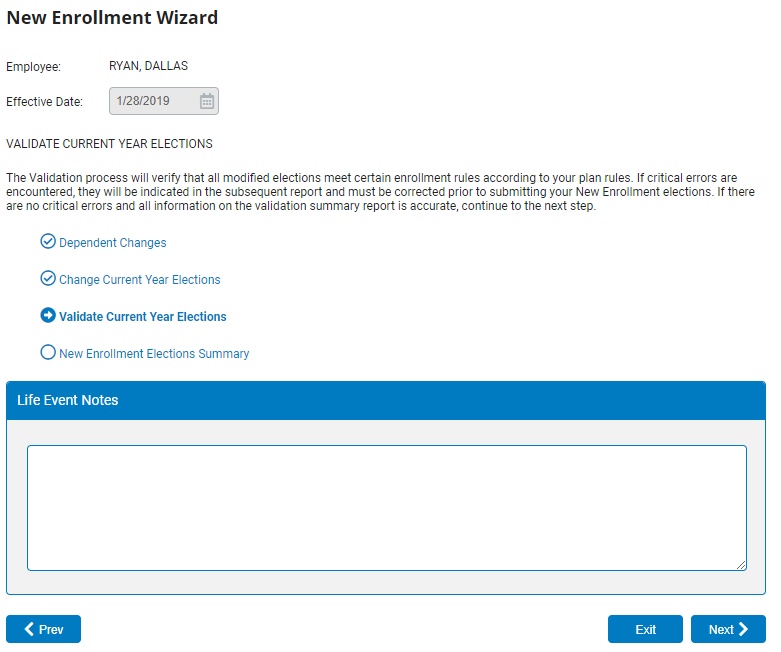
The New
Enrollment WizardNew
Enrollment Wizard page displays again with the Validate Current Year Elections
section now marked as complete.
14.
Click the NextNext
button.
The New Enrollment Summary
page displays as a final review for you to ensure the desired benefit
elections are chosen.
15.
Once satisfied with your benefit selections, click the SubmitSubmit
button.
Notes:
Changes will not
occur until your Life Event is approved by the benefits administrator
and the designated effective date is reached. Once approved, all changes
will be reflected in your records on the approval date, or effective
date, whichever is later.
The status of
the benefit enrollment will be displayed as Enrollment Selection Pending
once New Enrollment Life Event as been submitted.